
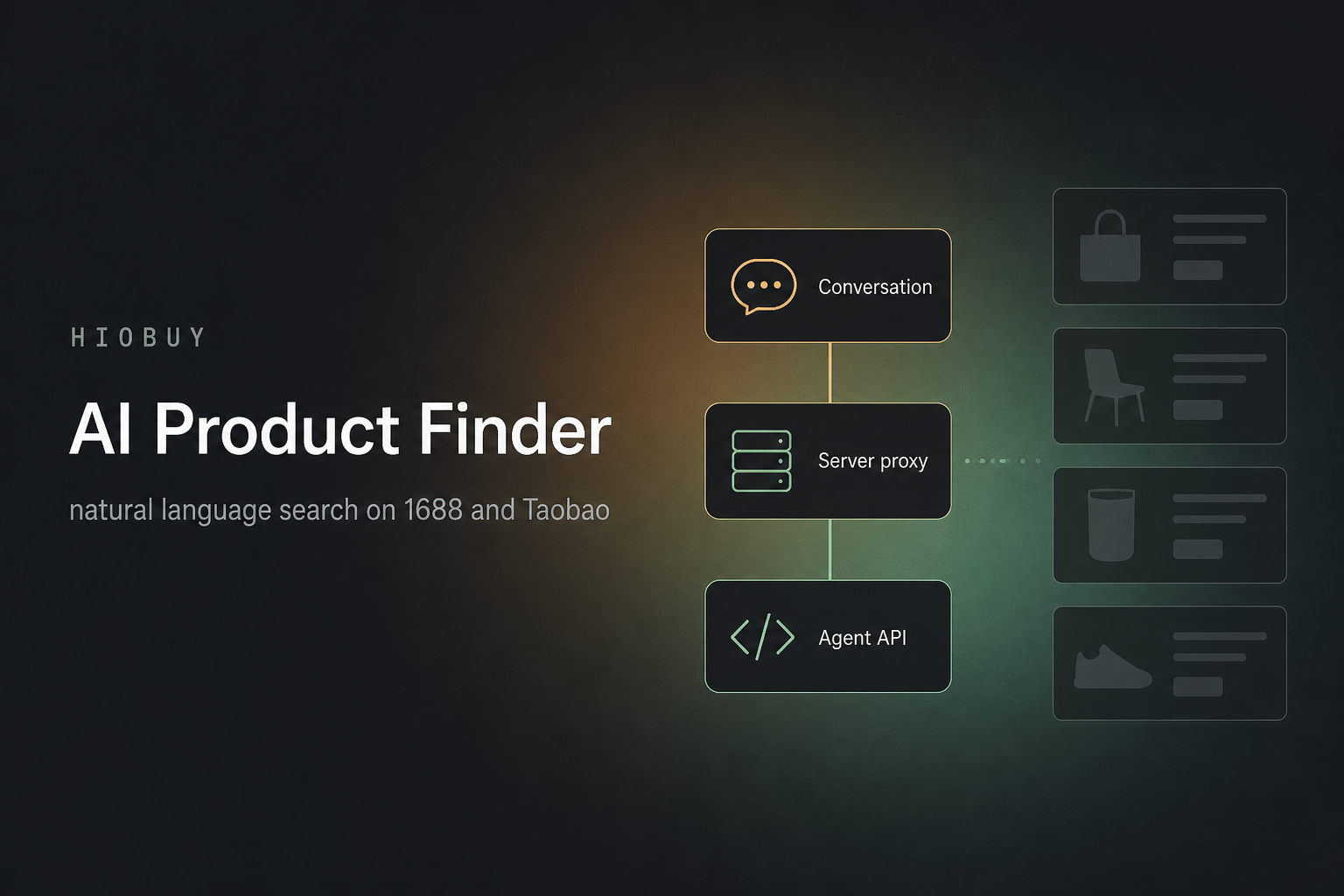
For teams that already have a website or app, and want conversational 1688 / Taobao search on their frontend — not a white-label store, and not a C-end shopping chatbot.
You already have a site, or you are about to build one. Keyword search on the Product API is the catalog loop. The extra piece some teams want is a prompt or a photo that becomes that same search, still on your domain, still in your UI, with the Live key never leaving your server.
That is a tool-calling problem. HIOBuy Agent API does not accept free-form text. Your backend maps intent to product.search or product.search_by_image, then POST /ai/v1/tools/call. The open-source demo is github.com/hiobuy/ai-product-finder (MIT). Live demo: ai-product-finder.demo.hiobuy.com. The rest of this post is how to run it, what the Agent HTTP call actually looks like, and where the demo stops.
Product API vs Agent API
Same catalog. Different surface.
| Integration | Base path | Key | This demo |
|---|---|---|---|
| Storefront / backend REST | /v1/* |
Live (hio_live_*) or sandbox (hio_test_*) |
No — that is the starter |
| Agent tool calling (HTTP) | /ai/v1/* |
Live only | Yes |
| MCP (Streamable HTTP) | /mcp |
Live only | No |
This demo uses HTTP /ai/v1, not MCP. Sandbox keys (hio_test_*) do not work on /ai/v1.
Scopes:
product:search—product.searchandproduct.search_by_image(andproduct.upload_image)product:detail—product.get_detail
The demo stops at the list. It does not call product.get_detail. data on search is StandardProductList — the same shape as POST /v1/products/search.
If you need catalog REST pages (keyword search, image search, paste a link, SKU detail) rather than a conversation UI, start from github.com/hiobuy/starter and the related tutorial How to Put Official Taobao and 1688 Product Data on Your Own Website.
Canonical Agent reference: hiobuy.com/en/api-docs/agent-api.
What the demo actually does
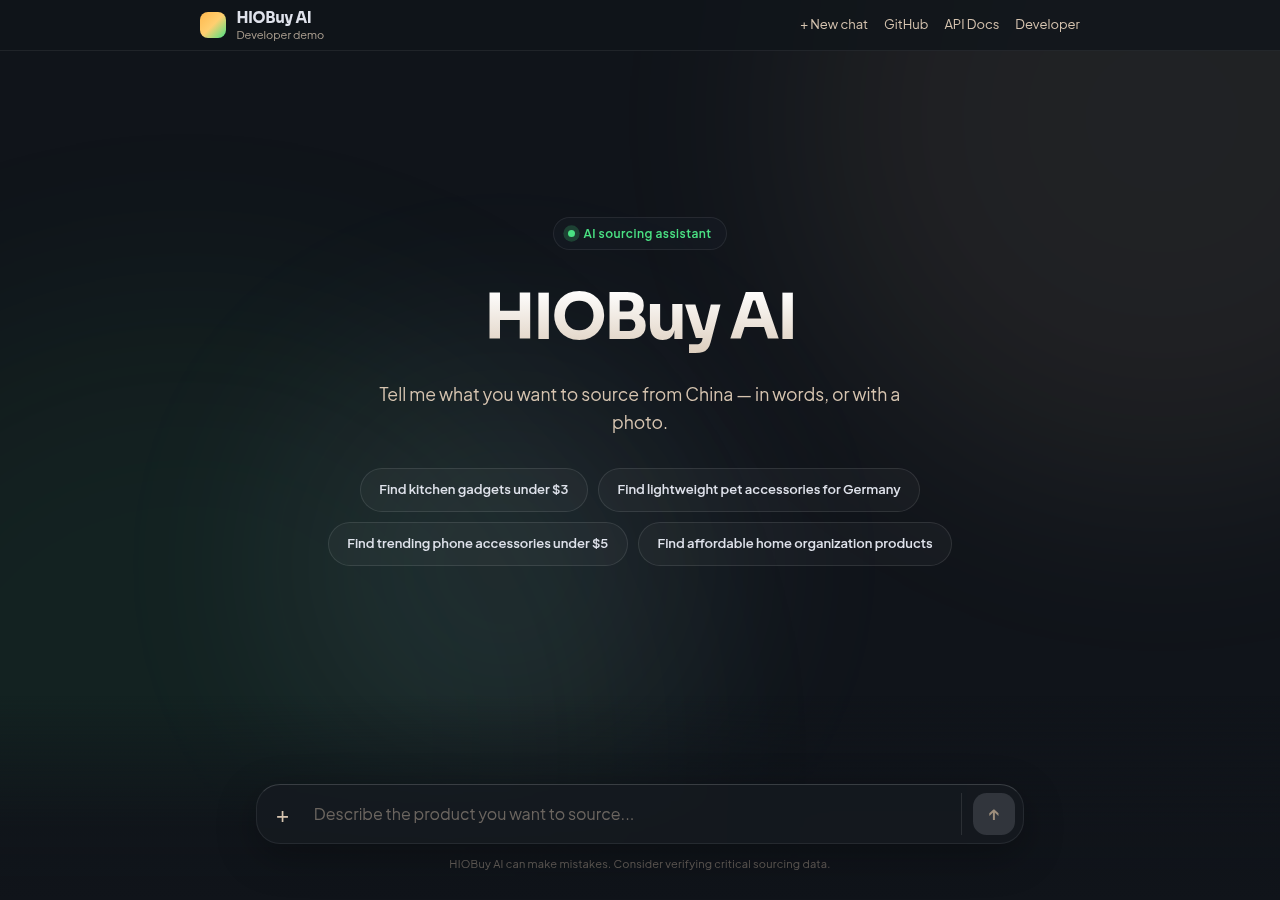
Conversation UI  (welcome → searching → results)
        ↓
Next.js route  POST /api/agent  { prompt, image_base64? }
        ↓
Map to product.search  or  product.search_by_image
        ↓
HIOBuy Agent API  POST /ai/v1/tools/call
        ↓
Assistant reply + product carousel
The usual app pattern:
- The browser
POSTs/api/agentwith{ prompt, image_base64? }. The key never reaches the browser. - The server maps the prompt to
product.search, or toproduct.search_by_imagewhen an image is attached (1688 / Taobao only — not Weidian). - The server
POSTs/ai/v1/tools/callwith your Live key. Uploaded bytes are used for that request only and are not stored. - The UI shows an assistant reply, a product carousel, and a collapsed Agent activity panel. Follow-ups stay in the current browser session only. There is no server-side history.
The welcome copy on the live page is: “Tell me what you want to source from China — in words, or with a photo.” Suggestion chips:
- Find kitchen gadgets under $3
- Find lightweight pet accessories for Germany
- Find trending phone accessories under $5
- Find affordable home organization products
Disclaimer on the page: HIOBuy AI can make mistakes.
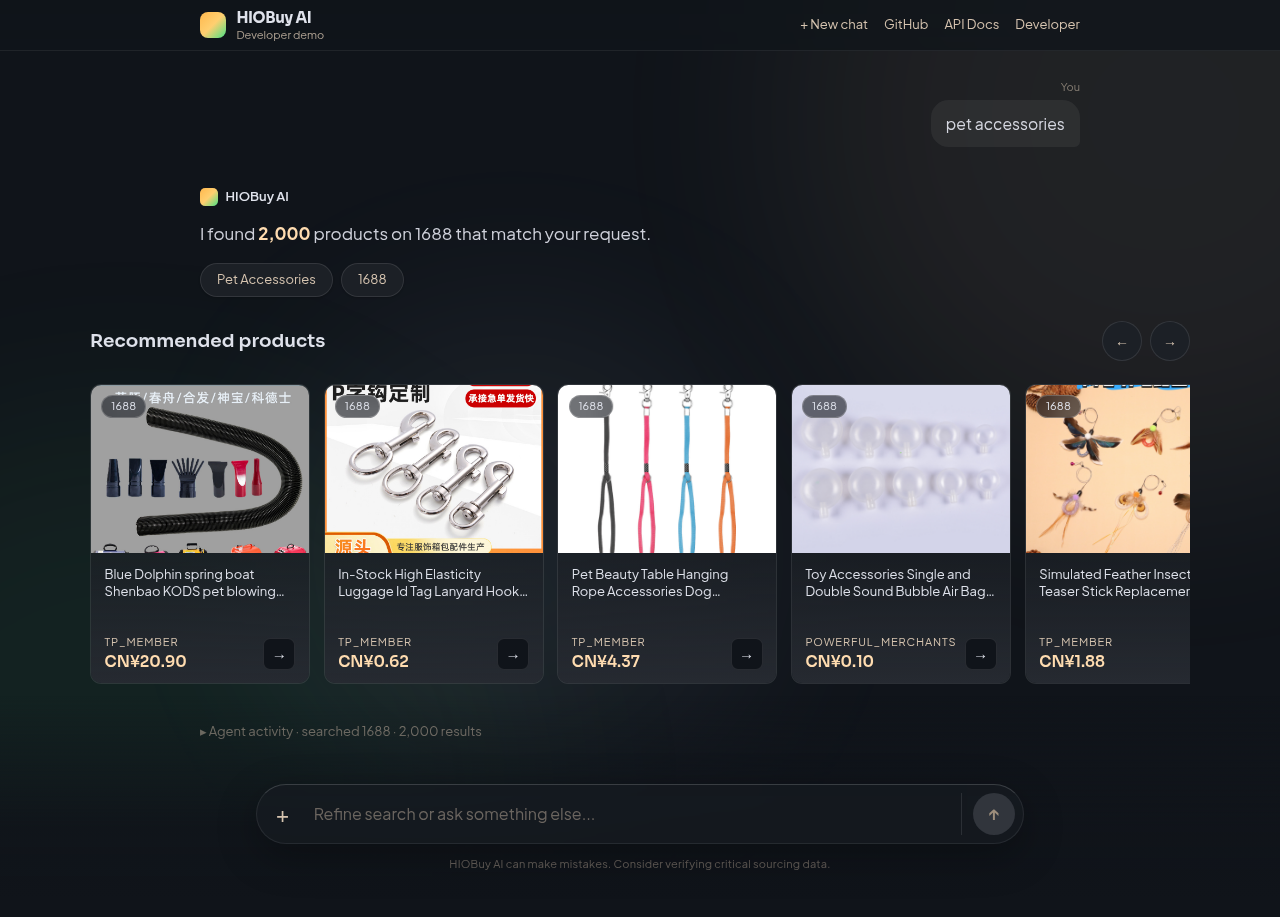
The public demo is for evaluation. It sits behind rate limits. Do not point production traffic at it as a proxy.
Hands-on: get a Live key, clone, run
1. Get a Live API key
Create a developer account at developers.hiobuy.com, create an App, authorize 1688 and/or Taobao, and issue a Live key (hio_live_*) with at least product:search.
Sandbox keys (hio_test_*) will fail on /ai/v1. If a channel is not authorized, product calls return 401 / 403.
2. Clone the demo
MIT licensed. Next.js.
git clone https://github.com/hiobuy/ai-product-finder.git
cd ai-product-finder
3. Keep the key on the server
cp .env.example .env.localThen set:
HIOBUY_API_KEY=your_live_api_key_hereOptional:
HIOBUY_API_BASE_URL=https://api.hiobuy.com
HIOBUY_DEFAULT_LANGUAGE=en
Never commit .env.local. Never put the key in frontend code, and never prefix it NEXT_PUBLIC_.
4. Install and run
pnpm install
pnpm dev
Open http://localhost:3000. You should get the same conversation UI as ai-product-finder.demo.hiobuy.com, against your own App.
How the request actually travels
Browser
   │  POST /api/agent  { prompt, image_base64? }
   ▼
Next.js Route Handler  (app/api/agent/route.ts)
   │  Validate prompt / image (JPEG, PNG, or WEBP, under 4 MB)
   │  Read server-only Live key
   │  Parse prompt to tool arguments  (lib/parse-prompt.ts)
   ▼
HIOBuy Agent API
   POST /ai/v1/tools/call
   { tool_id: "product.search" | "product.search_by_image", arguments }
   ▼
StandardProductList
   ▼
JSON to the browser  (no API key, no image_base64)
lib/hiobuy-agent.ts is the server-side client. lib/summarize.ts writes the assistant reply from the list that actually came back. Frontend code should call /api/agent, not the HIOBuy host.
If you already have a frontend in another stack, keep the same split: secret on the server, one thin proxy that maps prompt to tool call, your UI as the only thing users see.
Keyword search
Required arguments: channel, keyword. Optional filters include page, page_size, language, and price_start / price_end.
POST /ai/v1/tools/call
Authorization: Bearer hio_live_...
Content-Type: application/json

{
  "tool_id": "product.search",
  "arguments": {
    "channel": "1688",
    "keyword": "pet accessories",
    "language": "en",
    "page": 1,
    "page_size": 12
  }
}
data is StandardProductList — the same as POST /v1/products/search.
A new product query (child toys, 玩具, or a full Find … sentence) starts a fresh search. Short refinements such as cheaper, under $5, or from taobao reuse the previous keyword in the current browser session.
Image search
JPEG / PNG / WEBP, 4 MB max. The /ai/v1/tools/call body limit is 6 MiB. Channel is 1688 or taobao only — not Weidian. An image-only send uses the prompt Find similar products.
The composer + control uploads the photo. The browser never sees the Live key; image_base64 is sent to /api/agent and omitted from the client-facing tool JSON.
POST /ai/v1/tools/call
{
  "tool_id": "product.search_by_image",
  "arguments": {
    "channel": "1688",
    "image_base64": "<server-only>",
    "language": "en",
    "page": 1,
    "page_size": 12
  }
}
Docs recommend product.upload_image once, then product.search_by_image with image_id when you need pagination. This demo uses one-shot image_base64.
Price filters are application logic
price_start / price_end on both search tools are CNY yuan strings. The Agent API does not convert currency.
When a prompt says “under $5”, this demo converts with an approximate rate (USD_TO_CNY = 7.2) and sends price_end: "36". That lives in parse-prompt.ts. It is not an API feature. If you need a different FX source or a markup, change it in your app.
Cards only render what the list returns
Product cards (product-card.tsx / product-carousel.tsx) render fields the list actually returns: image, title, price, channel, seller, source URL. MOQ and sales appear only when the payload includes them. Recommendation copy, ratings, and bookmarks are not invented.
finder-app.tsx owns welcome / searching / results plus the composer.
Project layout:
src/
├── app/
│   ├── page.tsx              # single demo page
│   └── api/agent/route.ts    # browser to server proxy
├── components/
│   ├── finder-app.tsx        # welcome / searching / results + composer
│   ├── product-carousel.tsx
│   └── product-card.tsx
└── lib/
    ├── parse-prompt.ts       # prompt to search / image-search arguments
    ├── hiobuy-agent.ts       # POST /ai/v1/tools/call
    └── summarize.ts          # summary from actual search results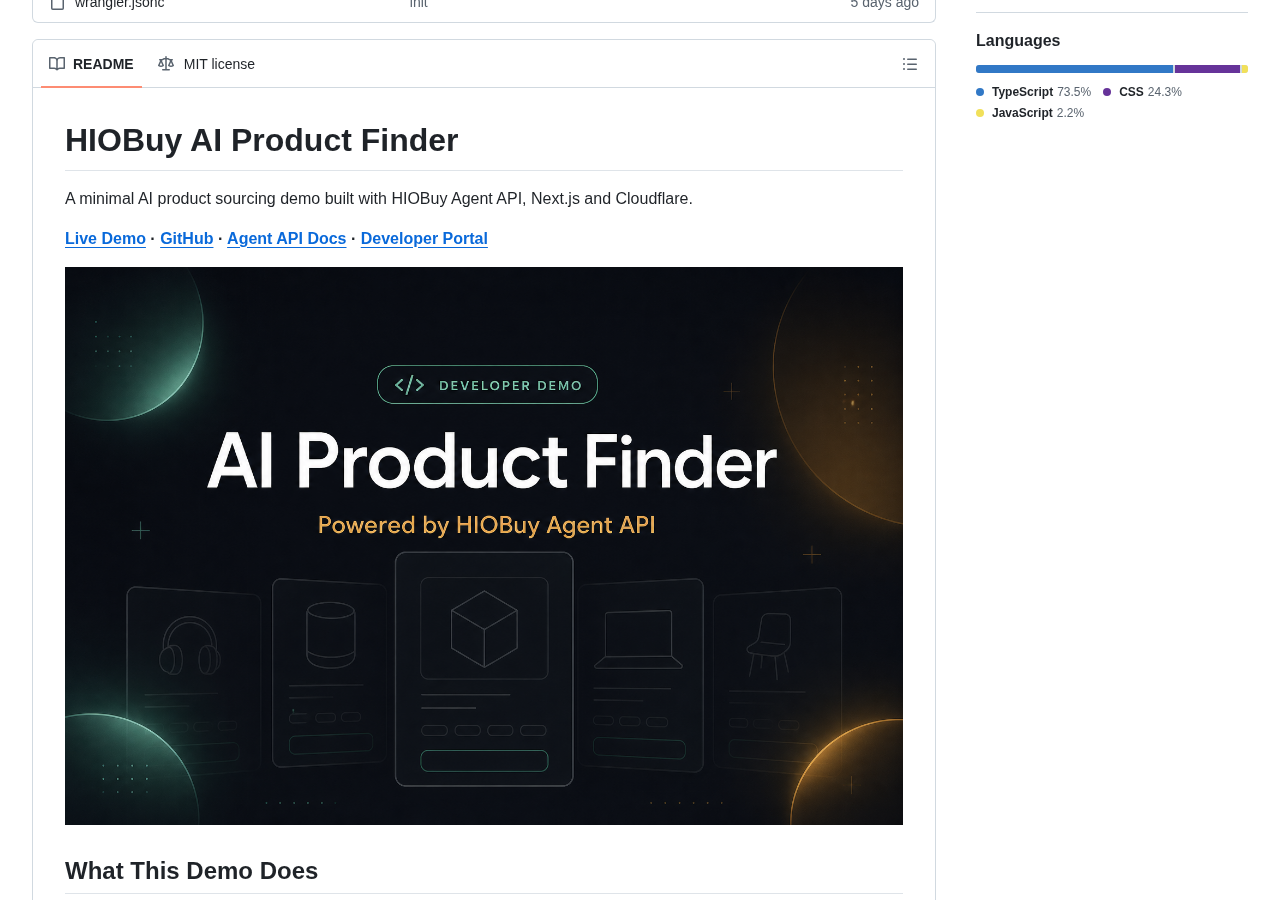
Catalog is not checkout
Read this before you treat the demo as a sourcing product.
It is an integration example for Agent HTTP (/ai/v1/tools/call). It does not include:
- Orders
- Warehouse fulfillment
- International shipping
- Server-side conversation history
product.get_detail
It is not a production-ready storefront. You still own cart, checkout, auth, FX, and whatever you wrap around a listing.
Deploy only if you need to
You do not need Cloudflare to run this locally or to self-host. It is a standard Next.js app.
The official demo happens to run on Cloudflare Workers via OpenNext. No D1, KV, or R2. That path is optional.
It uses OpenNext (@opennextjs/cloudflare).
pnpm preview is the OpenNext build plus local Workers runtime; it uses .env.local for local secrets.
OpenNext can embed Next.js env files into the Worker at build time. pnpm deploy moves .env.local aside so the key is not shipped inside the Worker. Set the secret on Cloudflare:
wrangler secret put HIOBUY_API_KEYOptional: wrangler secret put HIOBUY_DEFAULT_LANGUAGE. Then pnpm deploy. Do not put secrets in wrangler.jsonc, Git, or any NEXT_PUBLIC_* variable.
Where to go next
- AI Product Finder (MIT): github.com/hiobuy/ai-product-finder
- Live demo: ai-product-finder.demo.hiobuy.com
- Agent API reference: hiobuy.com/en/api-docs/agent-api
- Developer portal and Live key: developers.hiobuy.com
- Catalog REST starter (Product API /v1/*): github.com/hiobuy/starter
Clone it, put a Live key in .env.local, and hit localhost. If conversational 1688 / Taobao search on your own frontend is the missing piece, that is the whole job this demo is for.